Discord Module Setup
Link your Minecraft server to Discord and vice versa using the StreamlineDiscord module for StreamlineCore.
Prerequisites
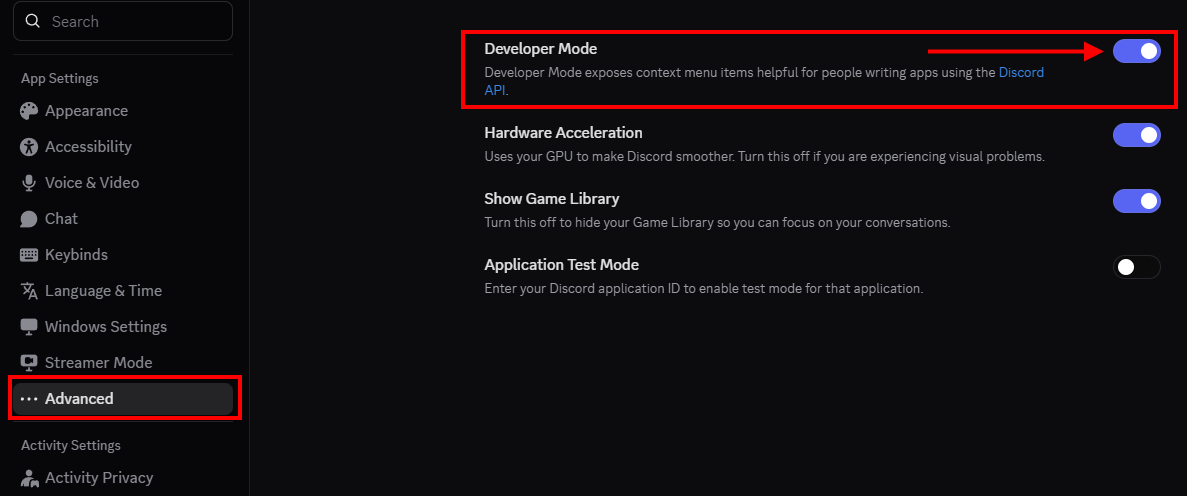
Enable Developer Mode in Discord so you can right-click to copy IDs:
Go to Settings > Advanced > Enable Developer Mode
Installation
- Stop your server.
- Place the
StreamlineDiscordmodule jar into yourmodulesfolder. - Start your server (generates config files), then stop it again.
- Edit the configuration as described below.
- Start your server.
Creating the Discord Bot
Go to the Discord Developer Portal and click New Application.

Choose a name and click Create.
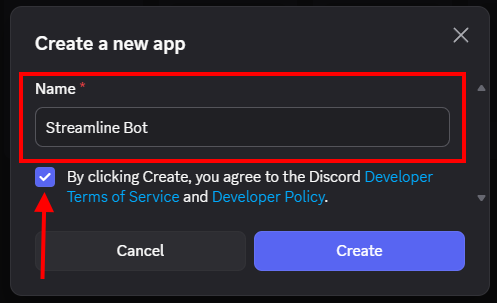
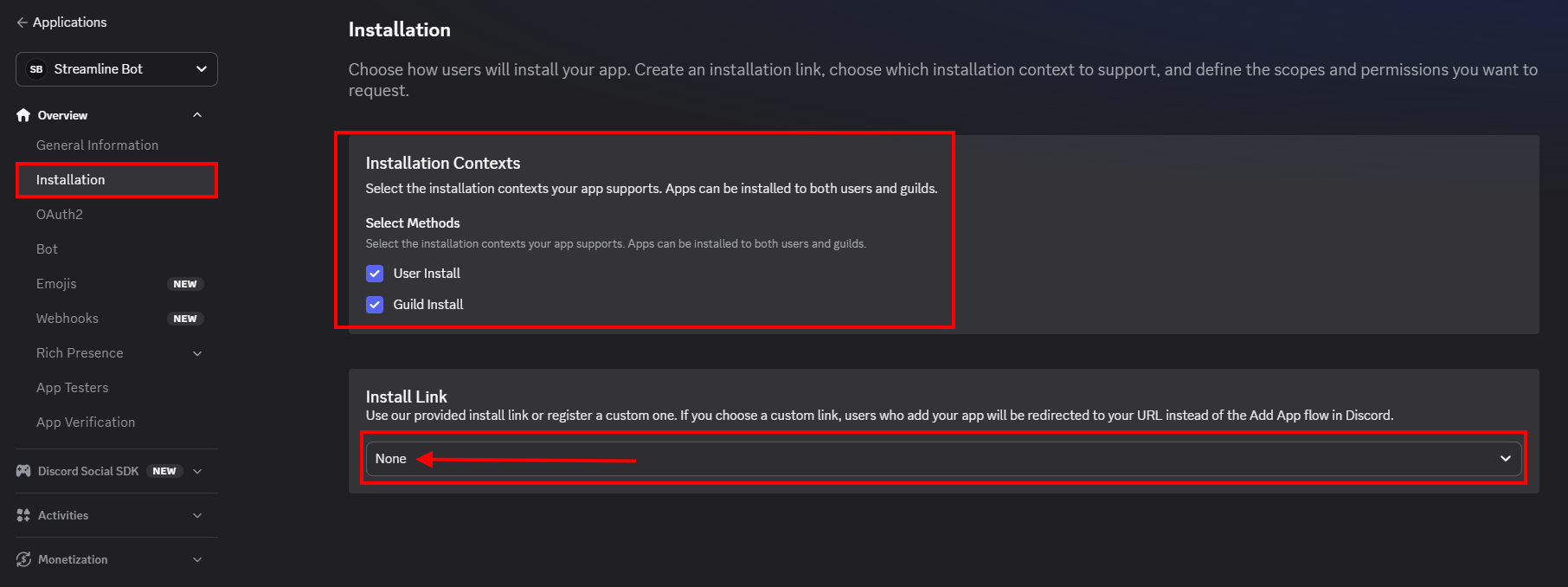
Under Installation, set Install Link to None.
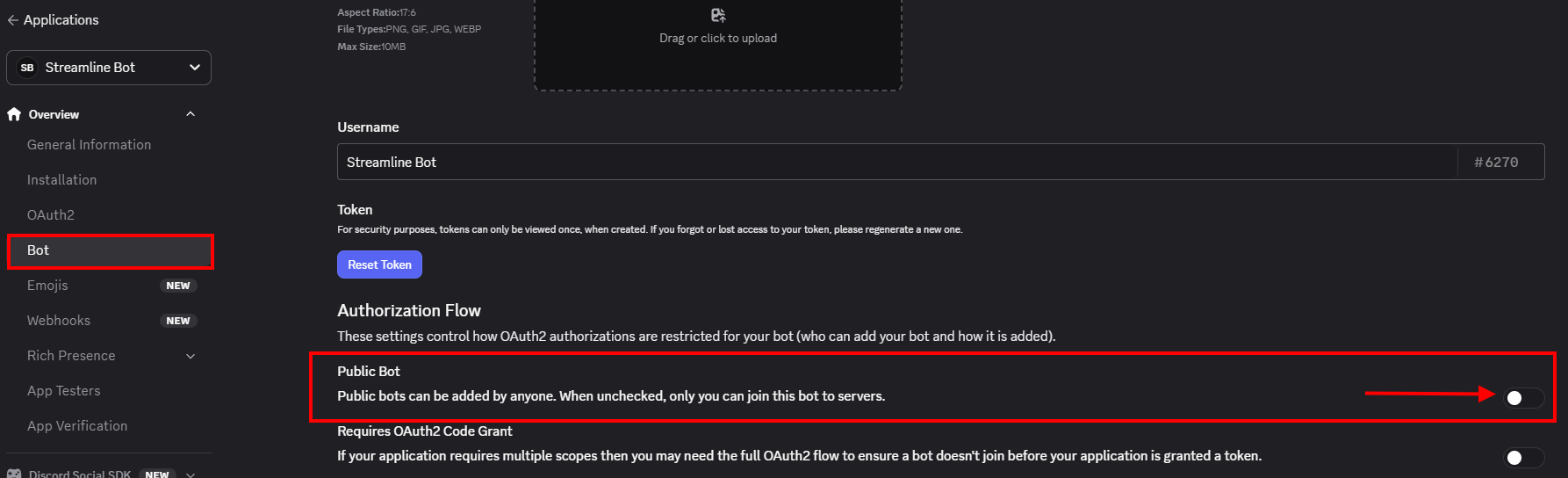
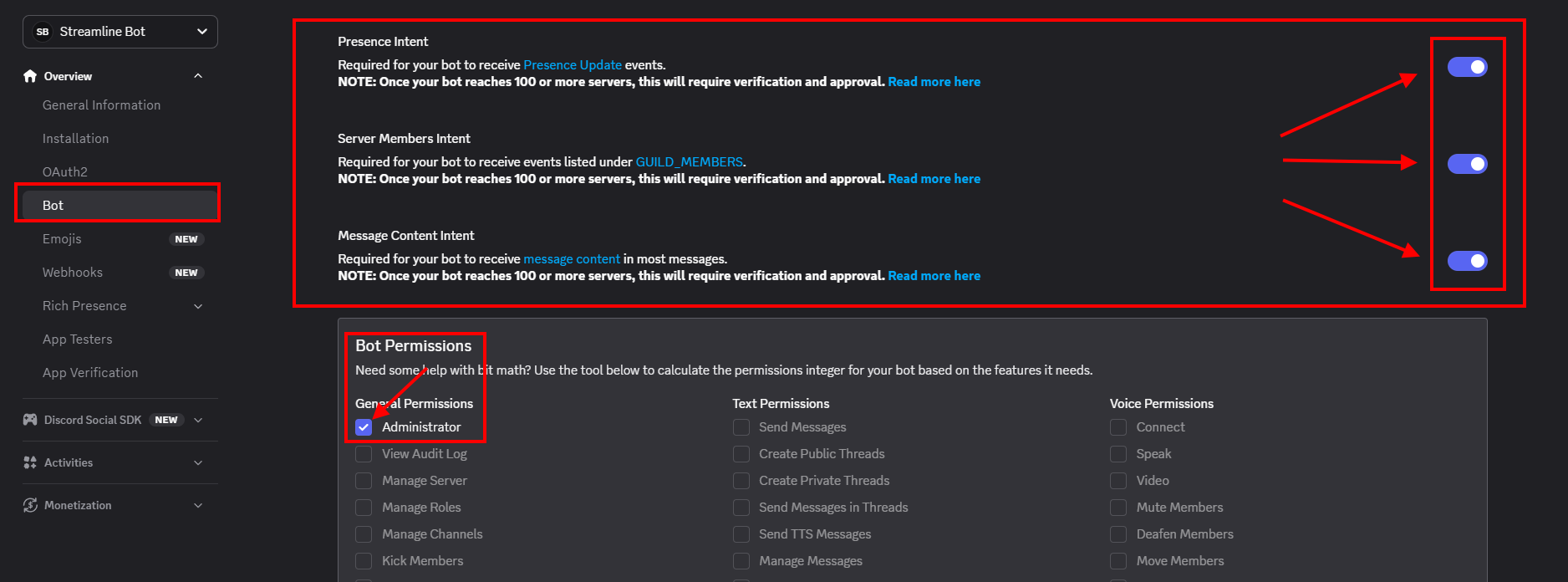
Go to the Bot tab. Keep Public Bot unchecked so only you can invite the bot.
Under Privileged Gateway Intents, enable all three intents. Under Bot Permissions, enable Administrator. Without these, the bot cannot read or send messages.
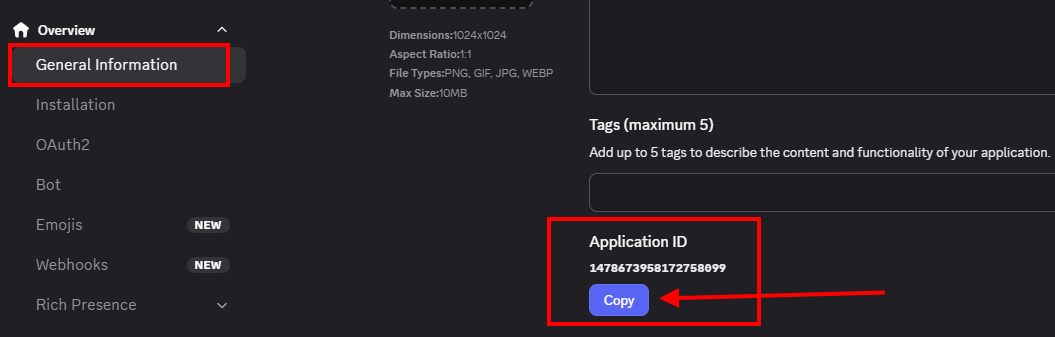
Copy the Application ID from the General Information page.
Invite the bot by visiting this URL (replace
YOUR_APP_IDwith the ID you copied):https://discord.com/oauth2/authorize?scope=bot+applications.commands&permissions=8&client_id=YOUR_APP_IDSelect your server and authorize the bot.
Plugin Configuration
Open the config file at streamline-discord/config.yml inside your module resources folder.
- Copy the bot Token from the Discord Developer Portal and paste it into the
tokenfield. - Set the bot prefix, activity type, and activity value.
- Copy the Server ID of your Discord server (right-click the server name > Copy Server ID) and paste it into
main-guild-id. - Adjust any other settings you want.
- Restart your server.
Default config.yml
bot:
  # Set to true to fully disable the bot (useful on backend servers).
  full-disable: false
  # Your bot token. NEVER share this with anyone.
  token: "<put token here -- DO NOT GIVE THIS TO ANYONE>"
  # Prefix for text-based bot commands.
  prefix: ">>"
  # Bot activity shown in the Discord sidebar.
  activity:
    # Options: CUSTOM_STATUS, COMPETING, LISTENING, DEFAULT, STREAMING, WATCHING
    type: "STREAMING"
    # Text after the activity type (e.g., "Streaming play.drak.gg")
    value: "play.drak.gg"
  avatar-url: "https://raw.githubusercontent.com/Streamline-Essentials/StreamlineWiki/main/s.png"
  # Enable Discord slash commands.
  slash-commands: true
  # The ID of your main Discord server.
  main-guild-id: 0
Channel Routes
A Route is a one-way connection between two endpoints — think of it like a one-directional tunnel between Minecraft and Discord.
Setting a Route
In the Discord channel you want to link, run:
/channelset type:<type> identifier:<identifier>Removing a Route
In the Discord channel you want to unlink, run:
/channelremove identifier:<identifier>Endpoint Types
Built-in (StreamlineDiscord)
| Type | Identifier | Description |
|---|---|---|
GLOBAL_NATIVE | Anything (ignored) | Routes to/from global Minecraft chat |
SPECIFIC_NATIVE | Server name | Routes to/from a specific server's chat |
PERMISSION | Permission node (e.g., myserver.staff) | Routes to players with a specific permission |
DISCORD_TEXT | Channel ID | Routes to a specific Discord text channel |
With Streamline Groups Module
| Type | Identifier | Description |
|---|---|---|
GUILD | Guild UUID | Routes to all members of a guild |
PARTY | Party UUID | Routes to all members of a party |
With Streamline Messaging Module
| Type | Identifier | Description |
|---|---|---|
SPECIFIC_HANDLED | Chat channel identifier | Routes to all members of a chat channel |